Passkeys: The New Login That Lets You Ditch Passwords (Without Feeling Lost)
Passkeys are showing up on phones and laptops as a simpler, safer way to sign in. Here’s what they are, how they work, and how to start using them calmly.
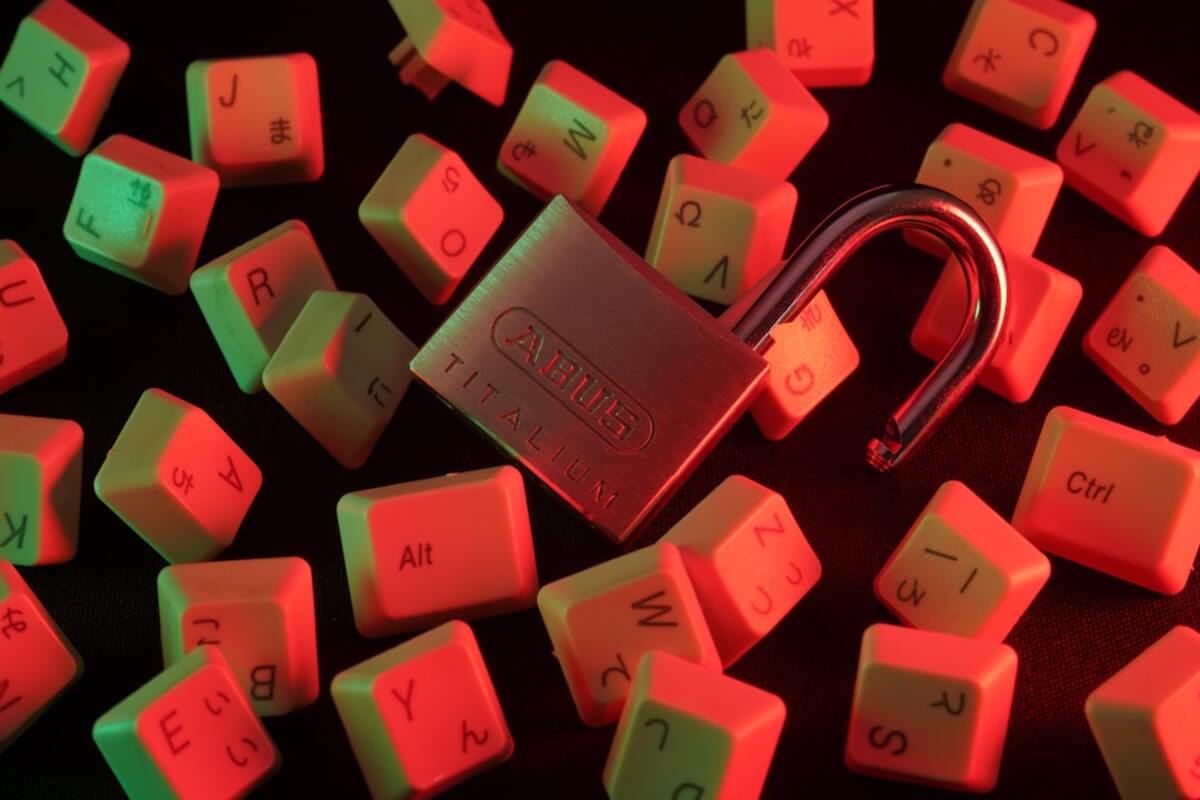
- Passkeys replace passwords with a device-based sign-in that usually uses Face ID, fingerprint, or a PIN.
- They’re designed to block phishing because there’s no reusable password to steal and type into a fake site.
- You can adopt passkeys gradually—most services still let you keep a backup sign-in method.
What a “passkey” feels like in real life
Imagine you walk up to your apartment building. Instead of rummaging for a metal key (or trying to remember a door code you swore you’d never forget), you tap your phone to a reader and confirm with Face ID. The door opens. No code to type. Nothing to “share.” Nothing that can be copied from across the street.
That’s roughly the vibe passkeys are aiming for—except the “door” is your email account, your shopping account, your work tools, and all the everyday logins that currently depend on passwords.
A passkey is a modern way to sign in that typically uses something you already do dozens of times a day: unlocking your device with a fingerprint, Face ID, or a device PIN. Instead of typing a password (and then typing a one-time code, and then resetting your password because you forgot which version you used), you approve the sign-in directly on a trusted device.
You’ve probably seen hints of it already:
- “Sign in with passkey” appearing next to “Sign in with password.”
- A prompt on your phone that says “Are you trying to sign in?”
- Browsers offering to create a passkey instead of saving yet another password.
Passkeys aren’t a niche security tool for experts. They’re being pushed because they make life easier for regular people and shut down a huge chunk of the scams that rely on password theft.

How passkeys work (without the math)
Passwords are a “shared secret.” You know it, the website knows it (or stores a version of it), and you prove you’re you by typing it in. The problem: anything you type can be tricked out of you, reused, guessed, leaked, or stolen.
Passkeys switch the model: instead of a shared secret, they use a pair of digital “keys” that belong together:
- A public key that the website keeps (this one isn’t secret).
- A private key that stays on your device and is protected by your device unlock (Face ID / fingerprint / PIN).
When you sign in, the website sends a challenge (think: “prove you have the matching key”). Your device answers that challenge using the private key—without handing the private key to the website and without you typing anything that could be phished.
An analogy that’s surprisingly useful: a passkey is like a unique stamp your device can press onto a document. The website can verify the stamp is real, but it can’t recreate the stamp itself. And you can’t be tricked into “typing your stamp” into a fake website because there’s nothing to type.
Why this matters in everyday scenarios:
Scenario A: The classic phishing email. You get a message: “Your account will be locked—sign in now.” With passwords, people click, type their password into a lookalike page, and scammers win. With passkeys, there’s no password to type. The fake page can ask, but it can’t collect a reusable secret.
Scenario B: A site you used years ago gets breached. If you reused a password (many of us have), attackers try that password everywhere else. With passkeys, there’s no reusable password string to copy-paste across sites.
Scenario C: You’re signing in on a TV or a shared computer. With passwords, you either type your credentials in public or you don’t sign in. With passkeys, many services let you approve the login on your phone—no awkward typing, no leaving your password behind on someone else’s device.
If you want a simple “what’s different?” view, here it is:
| Login method | What you provide | What a scammer can steal | What you experience |
|---|---|---|---|
| Password | A typed secret | The secret itself (reusable) | Memorize, type, reset, repeat |
| Password + SMS code | Secret + temporary code | Often both (via phishing or SIM tricks) | Extra step, waiting for messages |
| Passkey | Device approval (Face ID / fingerprint / PIN) | Hard to reuse; nothing simple to type into a fake site | Tap/confirm—usually faster |
One important detail: passkeys are usually stored in a secure area of your device and may sync across your devices through your platform’s account (for example, a phone and laptop signed into the same ecosystem). That syncing is what makes passkeys practical rather than “great until you buy a new phone.”
Getting started without breaking your current logins
The nicest thing about passkeys is you typically don’t have to go “all in” overnight. Many services let you add a passkey as an additional sign-in option while keeping your existing password as a fallback.
Here’s a calm, low-drama way to adopt them:
- Pick one account you use often (email, a major shopping site, or a work tool that supports it). If you see “Create a passkey,” that’s your entry point.
- Create the passkey on your main device (usually your phone). You’ll likely confirm with Face ID, fingerprint, or your device PIN.
- Test it immediately: log out and log back in using the passkey option. It should feel like approving a sign-in prompt, not like typing a credential.
- Check your backup options: make sure you still have a recovery email/phone set, and keep at least one fallback method enabled until you feel confident.
If you use multiple devices, you’ll notice one of three experiences:
- It “just appears” on your other devices (when passkeys are synced within your ecosystem).
- You’re prompted to approve from your phone when signing in on a laptop or tablet.
- You need to create a separate passkey for that device (some setups do this for extra control).
Passkeys also change the feel of logging in on someone else’s machine. Instead of typing your password on a shared computer, you may scan a QR code or approve a prompt on your phone. It’s like using your phone as a remote control for authentication.
Common questions people have (and honest, non-scary answers):
If your passkeys are synced through your device ecosystem, you can often regain access by signing into that ecosystem on a new device. If they’re not synced, you’ll rely on the account’s recovery options (recovery email, support flow, backup codes). Either way, it’s worth checking recovery settings now—just like you would with passwords.
If your passkeys are synced through your device ecosystem, you can often regain access by signing into that ecosystem on a new device. If they’re not synced, you’ll rely on the account’s recovery options (recovery email, support flow, backup codes). Either way, it’s worth checking recovery settings now—just like you would with passwords.
Often, yes—many sign-ins allow you to approve a login on your phone even when you’re on a different computer. The smoothness depends on the service and your setup. In practice, lots of people use a phone as the “main key” and let other devices request approval.
Often, yes—many sign-ins allow you to approve a login on your phone even when you’re on a different computer. The smoothness depends on the service and your setup. In practice, lots of people use a phone as the “main key” and let other devices request approval.
They’re not exactly the same thing, but they aim for a similar goal: making account takeovers harder. Passkeys usually combine “something you have” (your device) with “something you are/do” (biometric unlock) or “something you know” (device PIN). Many services treat passkeys as a strong sign-in method that can reduce or replace extra code steps.
They’re not exactly the same thing, but they aim for a similar goal: making account takeovers harder. Passkeys usually combine “something you have” (your device) with “something you are/do” (biometric unlock) or “something you know” (device PIN). Many services treat passkeys as a strong sign-in method that can reduce or replace extra code steps.
A practical tip: if you share accounts in a household (streaming, shopping, smart-home dashboards), passkeys can change the sharing dynamic. Password sharing is messy but common; passkeys push you toward individual profiles or device-based approvals. That’s not always convenient, but it can reduce the “everyone knows the one password” problem.
Also, passkeys don’t magically fix everything. You can still get tricked into approving a sign-in if you blindly tap “Allow” on prompts you didn’t initiate. The difference is the scam has to get you to approve in real time—there’s no password they can quietly steal and use later.
If you’re deciding where to start, choose accounts that:
- You sign into frequently (so you feel the convenience quickly).
- Would be a nightmare if compromised (email, cloud storage, payment-related accounts).
- Already offer passkeys in an obvious, guided way inside account settings.
Once you’ve used passkeys a few times, the biggest surprise is how “normal” it feels. Logging in starts to resemble unlocking your own device—fast, familiar, and harder to mess up than remembering whether this site wanted 12 characters, a symbol, no symbols, and the name of your first pet spelled backwards.