Why “Passkeys” Are Replacing Passwords (and What That Means for You)
Passkeys are showing up in phones, browsers, and apps as an easier way to sign in. Here’s what they are, why they’re safer than passwords, and how to start using them without stress.
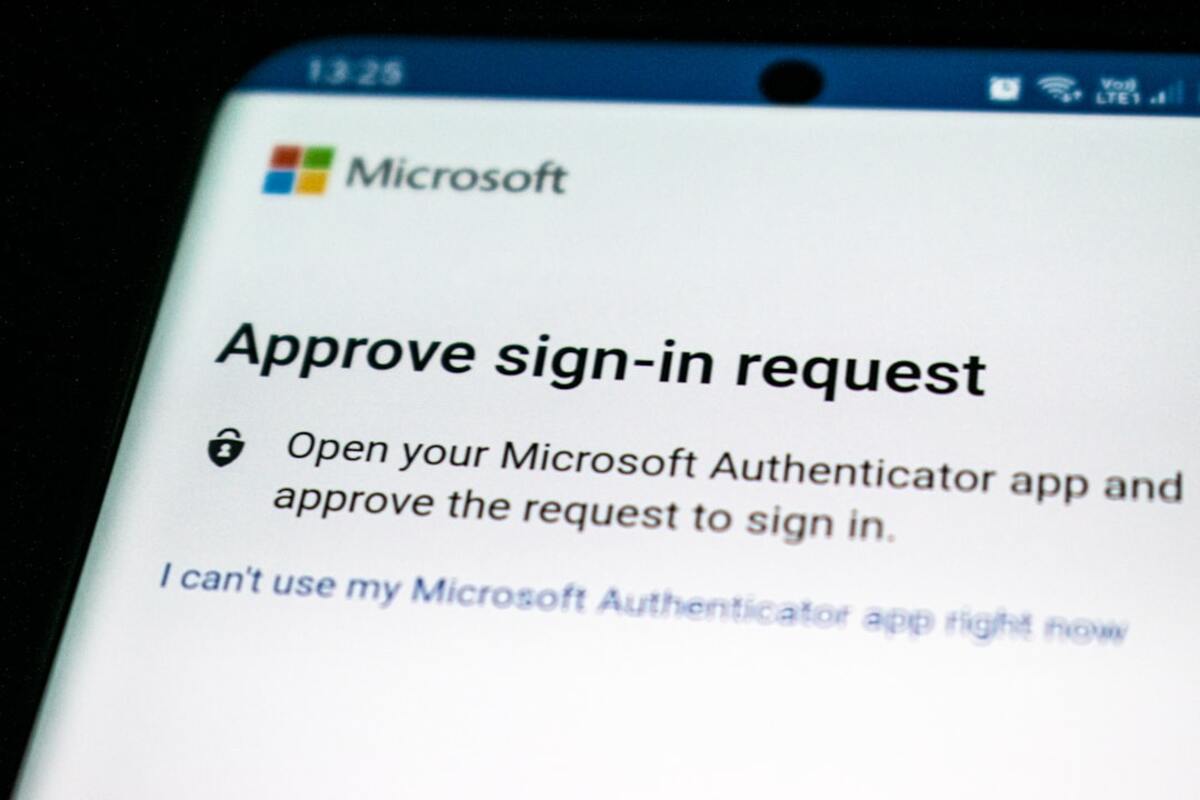
- Passkeys can stop common attacks like phishing and password reuse without you memorizing anything new
- They usually use Face ID/Touch ID or a device PIN—your secret isn’t typed, so it’s harder to steal
- You can use passkeys across devices, but you should understand syncing, backups, and recovery options
Meet the passkey: signing in without a “secret you type”
Most of us grew up with the same routine: create a password, forget it, reset it, then swear we’ll use a password manager next time. Passwords were never designed for the way we live now—dozens (or hundreds) of accounts, constant logins on phones, and attackers who can test millions of guesses in seconds.
That’s why you’re suddenly seeing a new option when you sign in: “Use a passkey”. It sounds like marketing, but it’s a real shift in how accounts are protected. A passkey is a modern sign-in method that replaces passwords with cryptography—and importantly, it’s designed to be usable for everyday people.
Instead of typing a password, you unlock your device the way you already do: Face ID, Touch ID, or your device PIN. Your device then proves to the website or app that it’s really you—without sending a password across the internet.
Think of it like this:
- Password: you tell the bouncer a secret phrase. If someone overhears it, they can repeat it.
- Passkey: you show a special badge that can’t be copied just by looking at it. The bouncer checks the badge is genuine using math, not trust.
Under the hood, a passkey is built from a pair of cryptographic keys:
- Public key: stored by the website/app. It’s safe to share.
- Private key: stays on your device (or in your device’s secure storage). It never gets sent to the website.
When you sign in, the site sends a challenge. Your device uses the private key to answer it. The site checks the answer using the public key. No password is exchanged. Nothing “reusable” is typed.

Why people are excited: passkeys vs. the real-world attacks you hear about
Security advice can feel abstract until you connect it to what actually happens in scams and breaches. Passkeys matter because they directly weaken the most common ways accounts get stolen.
Scenario 1: The classic phishing page
You get a message: “Your package is waiting. Confirm delivery.” You click, it looks like a real login page, you type your email and password, and… the attacker now has your credentials. Even if you have two-factor authentication, some phishing kits can trick you into giving up codes in real time.
With passkeys, there’s nothing useful to type into a fake site. A passkey is tied to the real website domain. If you’re on a lookalike domain, the passkey simply won’t authenticate like a password would. That makes passkeys strongly resistant to phishing in a way “be careful where you click” never fully solved.
Scenario 2: Password reuse after a data breach
A service you used years ago gets breached. Attackers try the leaked email+password combination on your email, bank, shopping accounts, and social media. This “credential stuffing” works because human beings reuse passwords (even when we know we shouldn’t).
Passkeys are different. The key created for one site can’t be used to sign into another site, even if your email address is the same. That breaks the “try it everywhere” strategy.
Scenario 3: Your strongest password still gets intercepted
You might have a long password, but if malware captures keystrokes, or if you type it into a compromised computer, it can be stolen. Passkeys reduce how often you type sensitive secrets at all. Even when you authenticate, the private key isn’t exposed like a typed password is.
What about SMS codes and authenticator apps?
Two-factor authentication (2FA) is still valuable, but passkeys aim to make strong security feel like the default instead of an “extra step.” In many cases, a passkey can provide security comparable to—or better than—password + 2FA, while feeling simpler to use.
| Method | What you do | Common weak spots | Everyday feel |
|---|---|---|---|
| Password only | Type a secret | Phishing, reuse, leaks, guessing | Familiar but fragile |
| Password + SMS code | Type secret + type code | SIM swap, interception, phishing in real time | Extra step, sometimes annoying |
| Password + authenticator app | Type secret + time-based code | Phishing can still work; setup/recovery confusion | Better, but still “two things” |
| Passkey | Unlock device (Face/Touch/PIN) | Device access; recovery planning; syncing choices | Fast, low friction |
Passkeys aren’t “magic.” If someone can unlock your phone, that’s a problem. But compared with the internet’s password ecosystem—where stolen credentials are bought and sold like spare parts—passkeys change what attackers can realistically do at scale.
How passkeys show up in daily life (and what to watch for)
Passkeys are already supported by major platforms and browsers, which is why they feel like they appeared overnight. You’ll see them in places like account settings (“Add a passkey”) or during login (“Sign in with passkey”). Here are the most common everyday moments where they matter.
1) Logging in on your own device
This is the smoothest case. You tap “Use passkey,” your phone asks for Face ID/Touch ID, and you’re in. There’s no password to remember and no code to copy.
2) Logging in on a different device (like a friend’s laptop or a work PC)
This is where people get curious: “If my passkey is on my phone, how do I use it on that computer?” Often, the site will show a QR code. You scan it with your phone, approve with biometrics, and the login completes on the other device.
In plain terms, your phone becomes a secure “sign-in remote.” You’re not transferring your private key to the computer—you’re using your phone to prove you’re you.
3) Syncing across your devices
Many people want passkeys to work on a phone, tablet, and laptop without extra effort. Some ecosystems can sync passkeys across devices using cloud accounts (for example, syncing to your account so you can use them on another device you own). This is convenient, but it also means you should treat your main platform account as high-value.
4) Losing your phone (the big worry)
With passwords, losing your phone might not matter. With passkeys, your phone can feel like “the key to everything.” The reality is more nuanced:
- If your passkeys sync to another device (or to your account), you may still be able to sign in from another trusted device.
- If you have multiple devices set up (phone + laptop), you’re less likely to be locked out.
- Some services still offer recovery paths (email recovery, backup codes, identity checks), though recovery varies by provider.
The practical takeaway is: passkeys reduce day-to-day risk, but recovery planning matters more than it used to.
No. Biometrics (Face ID/Touch ID) are usually just how you unlock access to the passkey on your device. The real authentication is done with cryptographic keys. Your fingerprint/face typically doesn’t get sent to the website.
No. Biometrics (Face ID/Touch ID) are usually just how you unlock access to the passkey on your device. The real authentication is done with cryptographic keys. Your fingerprint/face typically doesn’t get sent to the website.
Anything can be attacked, but passkeys remove several high-volume attack routes (phishing and password reuse). The bigger risks shift toward device compromise, account recovery scams, and someone gaining physical access to an unlocked device.
Anything can be attacked, but passkeys remove several high-volume attack routes (phishing and password reuse). The bigger risks shift toward device compromise, account recovery scams, and someone gaining physical access to an unlocked device.
Often, yes. Most systems let you unlock passkeys using a device PIN, pattern, or password instead of biometrics. Biometrics are a convenience layer, not the only option.
Often, yes. Most systems let you unlock passkeys using a device PIN, pattern, or password instead of biometrics. Biometrics are a convenience layer, not the only option.
What to watch for in the wild
As passkeys become common, you’ll see new patterns—some helpful, some confusing:
- “Create a passkey” prompts: Usually found in security settings. It’s a good sign when a service offers it, especially for accounts you care about (email, banking, shopping).
- Mixed login options: Many sites will keep passwords as a fallback for a while. That’s normal during the transition.
- Recovery steps: If a service offers backup codes or a secondary recovery method, set it up while you’re calm—not when you’re locked out at midnight.
A simple “where should I start?” checklist
- Start with one or two important accounts you use often (email is a strong candidate because it resets other passwords).
- Add a passkey, then test signing out and signing back in while you still remember what you changed.
- Check whether your passkeys are available on a second device you own (or how your platform handles syncing).
- If offered, save backup codes in a safe place (not in your email inbox).
Passkeys are one of those rare security upgrades that can make life easier at the same time: fewer passwords to manage, fewer scams that work, and a login flow that feels like unlocking a door you already use every day.