Can Your Phone Write Messages for You? A Friendly Guide to Text Automation
From “I’m running late” to weekly check-ins, learn how simple phone automations can draft and send texts at the right moment—without feeling robotic.
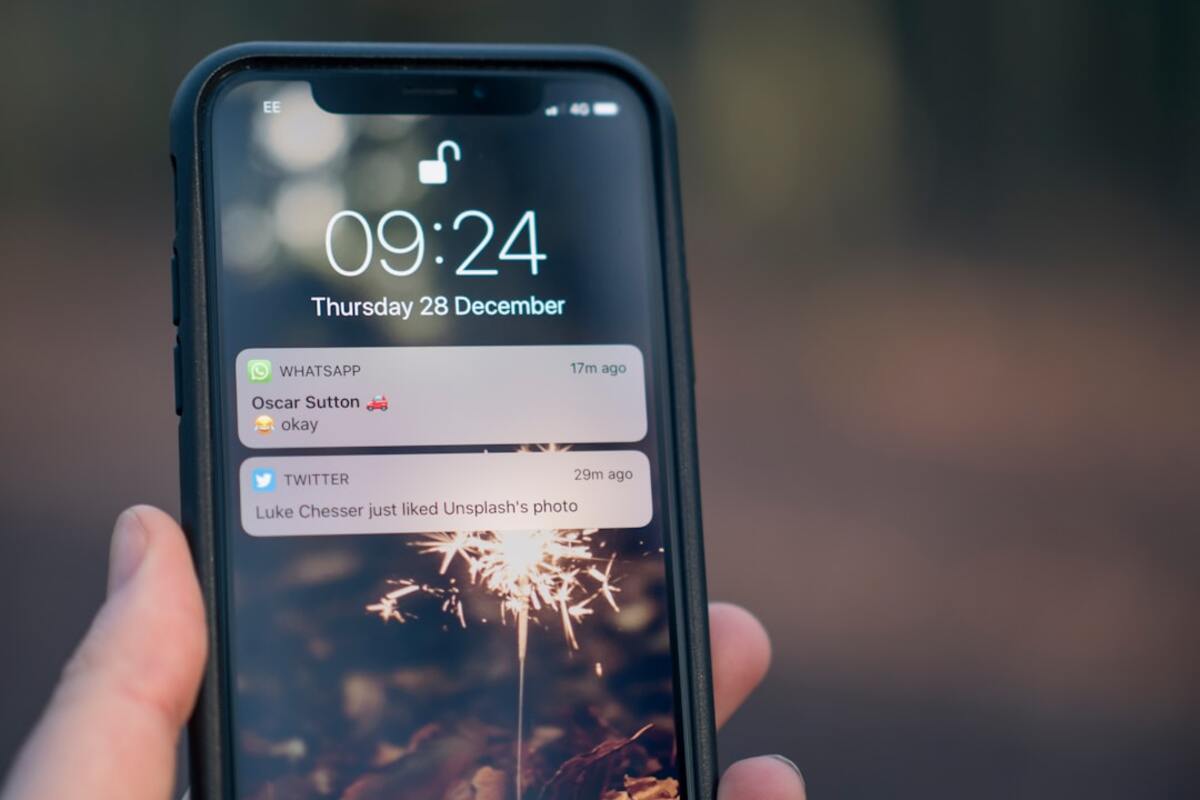
- Text automation can handle routine messages using triggers like time, location, or calendar events
- You can keep it personal with templates, variables, and “review before sending” options
- Smart safeguards (confirmations, quiet hours, and contact limits) prevent awkward auto-text moments
What “text automation” really means (and why it’s suddenly everywhere)
Text automation sounds like something only big companies do—until you notice how often you send the same messages on repeat. “On my way.” “Running 10 minutes late.” “Can we reschedule?” “Here’s the address.” “Happy birthday!” These aren’t hard to write, but they’re frequent, time-sensitive, and easy to forget at the worst moment (like when you’re juggling groceries or stepping into a meeting).
Text automation is simply setting up your phone (or a messaging app) so that certain situations can suggest, draft, or sometimes send a message for you. Think of it like a polite assistant who taps you on the shoulder and says, “This is the moment you usually text Alex—want me to prepare it?”
This is currently emerging in everyday life because modern phones now have built-in automation tools (like iOS Shortcuts and Android automation apps), plus better integrations with calendars, maps, reminders, and smart devices. The result: you don’t need to code, and you don’t need to be “techy.” You just need a routine that repeats.
Here’s a simple way to picture it: if your day is a playlist, automation is the “smart shuffle” that knows which track comes next. You’re still the DJ—you just don’t have to search every time.

Everyday scenarios where automated texts actually feel human
The best automations aren’t flashy. They’re the ones that remove tiny points of friction—especially when you’re busy, stressed, or distracted. Below are a few scenarios that tend to work well because they’re predictable and socially normal to send.
- “I’m on my way” without the scramble: You leave home, get into the car, and your phone pops up a draft to text your partner: “Heading out now—ETA 18 mins.” You tap send (or edit it). No fumbling with navigation + messaging at the same time.
- Late to a meeting, but still considerate: If your calendar event starts in 10 minutes and you’re not near the location, your phone can prompt: “Want to message the organizer that you’re running ~10 minutes late?” This is surprisingly useful when traffic turns a normal commute into a mystery novel.
- Check-ins you always mean to do: Some people set a weekly automation that drafts a message every Sunday afternoon: “Hey! How’s your week been?” to a friend or family group. It’s not “fake.” It’s a reminder to do something you genuinely care about but forget.
- Practical household coordination: When you arrive at the grocery store, your phone can open a note and draft a text to your housemate: “I’m at the store—anything you need?” It’s small, but it prevents the classic “I just left… oh no.”
What makes these work is that they’re not trying to impersonate you with paragraphs of emotion. They’re short, context-based messages you’d send anyway.
A useful rule of thumb: automate messages that are (1) frequent, (2) time-sensitive, and (3) low-stakes if they’re slightly templated.
To make this more concrete, here’s a quick table of common triggers and what they’re best at.
| Trigger (the “when”) | Good for | Example draft message |
|---|---|---|
| Location (arrive/leave) | ETAs, pickups, coordination | “Just arrived at the station. Want me to grab coffee?” |
| Time of day / day of week | Recurring check-ins, reminders | “Quick ping—still on for tonight?” |
| Calendar event start/end | Meeting updates, follow-ups | “Running a few minutes late—be there ASAP.” |
| Connect to car / Bluetooth | Commuting messages, safe driving mode | “Driving now—call you when I arrive.” |
| Low battery / charging | Expectation-setting | “My phone’s about to die—if I disappear, I’m not ignoring you.” |
Notice the pattern: it’s not about blasting messages. It’s about nudging you at the right time, with a message that’s already half-written.
How to set it up without awkward moments: templates, tone, and safety rails
The biggest fear people have is reasonable: “What if my phone sends something weird to the wrong person?” Good news: most practical setups don’t fully auto-send. They prepare a draft or show a notification that you can approve. That “human-in-the-loop” step keeps automation helpful rather than haunting.
Here are the building blocks that make text automation feel natural.
1) Use templates that sound like you
A template is a reusable message with a few flexible parts. The trick is to write it in your normal voice—casual if you’re casual, straightforward if you’re straightforward. If you never say “Greetings,” don’t make your automation say “Greetings.”
Try writing three versions of the same intent, then pick the one that matches your real style:
- “Heading out now—ETA about [X] minutes.”
- “On my way! Should be there in ~[X].”
- “Leaving now. ETA [X].”
2) Add “variables” so the message adapts
Many automation tools can insert details automatically, like:
- ETA or travel time (pulled from maps)
- Current location name (“at Downtown Station”)
- Calendar event title (“Running late to ‘Design Sync’”)
- Time (“I’ll call around 6:30”)
This is where messages stop feeling copy-pasted. An auto-filled detail makes it feel like you took the moment to be specific—because in a way, you did. You designed the system that knows what matters.
3) Prefer “Ask before sending” for anything emotional or high-stakes
Some messages are too context-sensitive to auto-send. For example: apologies, relationship conversations, negotiations, or anything that depends on mood. Automation can still help by drafting the opening line, but you should approve the final message.
A good compromise: automate the prompt, not the sending. Example: “It’s 7:45 and your dinner reservation is at 8:00—send a quick update?” You choose what happens next.
4) Build in quiet hours and boundaries
To keep automation from becoming annoying (or intrusive), set rules like:
- No messages after 9 pm unless you manually approve
- Only to favorites (partner, family, key coworkers)
- Only once per event (no repeated “running late” pings)
- Only when not in Do Not Disturb (so it respects your own focus time)
5) Start tiny: one automation, one person, one trigger
The fastest way to trust automation is to begin with something simple and reversible—like a single “arrived safely” message to one contact when you reach a specific location. Run it for a week. See if it helps. Then expand.
Only if you automate the wrong kind of messages. Keep automation for practical, repeatable notes (ETA, arrivals, quick coordination). Use drafts + approval for anything personal. Writing templates in your real voice helps a lot.
Only if you automate the wrong kind of messages. Keep automation for practical, repeatable notes (ETA, arrivals, quick coordination). Use drafts + approval for anything personal. Writing templates in your real voice helps a lot.
It can be, if you add safety rails: limit recipients, use confirmations, avoid automations that trigger too broadly, and keep a “stop switch” (like disabling the automation quickly). For most people, “draft then approve” is the safest sweet spot.
It can be, if you add safety rails: limit recipients, use confirmations, avoid automations that trigger too broadly, and keep a “stop switch” (like disabling the automation quickly). For most people, “draft then approve” is the safest sweet spot.
Try an “arrived” message to a partner or family member when you reach a frequent destination (home, school pickup, a gym). It’s simple, useful, and low-risk—and it quickly shows the value of automating the predictable parts of life.
Try an “arrived” message to a partner or family member when you reach a frequent destination (home, school pickup, a gym). It’s simple, useful, and low-risk—and it quickly shows the value of automating the predictable parts of life.
One last way to think about it: text automation isn’t about replacing your relationships with scripts. It’s about removing the tiny logistical messages that steal attention, so you have more time (and mental space) for the messages that actually matter.